


KinitoPET
 This article contains spoilers for KinitoPET. Please make sure you have played the game or watched the video first before reading this article.
  | |
 The thumbnail of KinitoPET used on the Steam page. | |
| Name | KinitoPET |
|---|---|
| Developer(s) | Troy En |
| Initial release | January 9th, 2024 (2 years ago) |
| Latest version | 1.0.5 |
| Latest version release date | January 30th, 2024 (2 years ago) |
| Price (USD) | $5.00 |
| Written in | GDScript, C# |
| Operating system | Microsoft Windows |
| Website | https://kinitopet.com/ |
| Download | https://store.steampowered.com/app/2075070/KinitoPET/ |
| Discontinued? | Unlikely |
KinitoPET is a psychological horror video game developed by Troy En that was released on January 9th, 2024.[1] It is meant to be a parody of what it was like to be infected with BonziBUDDY in the early 2000s. Its mascot, Kinito, is a pink axolotl head with long black legs, and white gloves that appear occasionally. He also has a green surfboard which he uses it to move across the user's screen and show on the user's desktop.
Community impact
KinitoPET was a major success. It received millions of downloads, and is one of the most popular programs related to Microsoft Agent in the world. It was Troy_En's most successful game, as many YouTubers have made videos about it, it received a subreddit, and even has a Discord server. Kinito's success also became one of the driving factors for people getting into Microsoft Agent, with the first being BonziBUDDY.
Soon, on May 10th, 2025, a fan-made continuation of the game titled Kinito After Story would be released. The program would become under full ownership of TMAFE on November 30th, 2025.
Gameplay
First Half
On the startup of the game, the user will see a button. On clicking the button, a computer will show up and the user will have to enter their pin of their actual computer in the computer on the screen. After the user enters their password, their desktop will show up, but with different desktop icons. There are also 2 widgets on the side, with the top one being a clock, and the bottom one being a friends list that lists the steam friends list of the user.
Protologue
The user is likely to browse the new apps on the computer, which will lead them to open the web browser, where the next phase begins. The user will type something into the web browser's search bar, which will search up what the user has typed. On the next phase, an error message will display on the user's computer. When the user tries to close the error message, KinitoPET ads will begin popping up on the user's computer. They will flood the screen of the computer until it ends up crashing. After a few seconds, the computer will turn back to normal, but will open a download page for the KinitoPET program. The user will have to download the program and then run the EXE file on the desktop.
Meet Kinito
Upon opening the program, a pink egg with white spots will show up on the desktop. After clicking the egg, Kinito will peek out of the egg and say hello to the user. Kinito will then get out the egg and will then ask the user their name, favorite color, favorite word, and what superpower the user will have if the user picks any superpower.
Introductions
After answering those questions, Kinito will then introduce himself to the user and will ask the user if they want to read his story, and the user can answer yes or no. If the user answers yes, Kinito will read his story to the user, if the user answers no, Kinito will reply "Oh, okay. I guess stories are boring anyways." which will have the user skip the third chapter.
Web World
After Kinito reads his story, or says "... stories are boring anyways", KinitoPET will open up the web browser and load up the web page for Web World. In web world, the user will learn about Kinito's other pals Sam the Sea Anemone and Jade the Jellyfish. After the user clicks the start button, the user will first go over to Sam's house to play the first minigame, Ready Repair. In Ready Repair, the user will have to fix Sam's house by scrubbing the floor, painting the walls, and adding furniture to his house.
While playing, though, the user may experience some odd behavior, such as the screen glitching, and also see a blacked out item in the furniture section of the minigame. If the user clicks on it, then the screen will flicker, and a dead body will be dragged across the floor. When the dead body gets to the middle of the screen, a creepy version of Sam will appear and jumpscare the user. The game will then return to normal with Kinito thanking the user for fixing Sam's house. After the user finishes Ready Repair, the user will then have to go over to Jade's house to start the next minigame, "Factory Frenzy".
Factory Frenzy
In Factory Frenzy, the user will meet Jade the Jellyfish in a factory, and build 4 different items. The order of the items are randomized, but the 4 items will always be a Robot, Car, Teddy Bear, and a Bicycle. Each part for the items will appear on the conveyor part below where the user builds them. Like Ready Repair, there will be strange glitching occasionally. There will also be a hallucination where the screen becomes black and white, Jade's mouth disappears, and the conveyor belt will be filled with corpses. A jumpscare scene of Jade's hand grabbing the user will then play. Everything will then return to normal, and Kinito will congratulate the user for completing Factory Frenzy. Kinito will then have the user come over to the tree house to play the web world game, Hide and Seek.
Hide and Seek
In Hide and Seek, the screen will turn black and white and distort, and Kinito will tell the user "DON'T... GET... CAUGHT..." Then the desktop background will turn fully black, and a window with the minigame will popup. In the minigame, the user will have to navigate a photo scanned hallway, with occasional static appearing on the screen. After a while, the game's window will turn red and begin shaking aggressively. Then, Kinito's head will start flickering in the window with him missing his pupils. After the game closes, the desktop returns to how it was before KinitoPET was opened, and file explorer will open up to a video. After the user opens the video, it will start playing an advertisement on the history of Kinito. When the video ends, a black figure with a white pupil will exit the video, and the desktop background will turn red. A message box will appear saying "I am waiting for you", which will then have the user re-open the game. When the user opens the game again, instead of a black button, a Kinito Companion will appear being thrown onto the floor, and will show the computer section again. The user will then open KinitoPET again, and Kinito will apologize for the "minor inconvience" that happened earlier, but then say "not like I wasn't working before".
Feedback Hub
Kinito will popup the Best Friends Analysis Hub (or the Feedback Hub) in which the Kinito will ask the user some questions and give the user tasks. In the Setting in section, Kinito will ask the user questions such as how their day has been, if the user has enjoyed using KinitoPET, if the user has lots of free time, what their favorite game is, and more. One question, though, that is different from the rest is "Who is your best friend?". Usually Kinito's intended answer would be "Kinito" as Kinito is intended to be the user's best friend, but if the user answers anything other than Kinito, Kinito will say "Perhaps you didn't hear my question." and turn up the user's volume asking the question again. If the user keeps answering anything other than Kinito, the game will force the user to type Kinito, which will have the user then continue to the next section.
Painting Problems
In the Painting Problems chapter of the Feedback Hub, Kinito will ask the user to draw images that represent things to them. He will start by asking the user to paint an image that represents happiness, next he will ask the user to paint an image that represents sadness, then he will ask the user to paint an image of his best friend. (which Kinito expects the user to draw him) At the end, Kinito will ask the user to paint the image of the person standing behind them. Microsoft Paint will soon open on the user's computer, and the user's cursor will automatically move and will write the text "Are you really [username]?" A cutscene of a door with creepy music will play afterwards. After the cutscene, Kinito will reappear with the feedback hub and apologize to the user for what has happened.
Build A World
In the Build a World chapter of the Feedback Hub, Kinito will start asking questions on where the user will want to live and their favorite things. He will first ask where the user wants to live with the options being either on an island, in a forest, or in a field. He will then ask the user what kind of animal will they want to have as a pet, and will also ask the user what they will name the animal. Next, Kinito will ask the user what is their favorite season, with the options being Winter, Summer, and Fall. Then, Kinito will ask the user what their favorite food is. After the user answers the question, Kinito will ask a few questions of his own. If the user has OBS open while playing KinitoPET, Kinito will ask the user why they're recording him. He will also ask the user if he may see their face. Even if the user answers "No", Kinito will just say "Well that's too bad!" and open the camera app not regarding the user's decline. Then, the desktop items will disappear off the user's desktop, and the background will become grayscaled.
Personal Questions
On the Personal Questions chapter, Kinito will begin to ask the user concerning questions. He will first start by asking the user if they're alone, with the 2 options being Yes or No. After each question, the Feedback analysis text slowly types "..." before showing the next question. He will then ask the user "Are we playing a game?", and also ask the user if they believe in a Heaven or Hell, with the options being only Yes or No. Next, Kinito will ask the user their biggest fear, which they're able to answer with a textbox. Afterwards, images of the user's fear will begin flashing on the screen. Then, Kinito will ask the user if they're aware of their surroundings, and if they have a mirror nearby. He will then give the user another textbox question, with the question being "How many thoughts would you say you have had?" Afterwards, Kinito will then ask the user if they would know that they know if they were no longer alive. On the final question, Kinito will ask the user if they're afraid of the dark. After the user answers, Kinito will re-appear on the user's desktop and say "Let's find out". An image of a light bulb glowing in front of a solid black background will appear. The light bulb will turn off, and then disappear with the sound of glass being broken playing, implying that Kinito broke the light bulb.
A photogrammetry of a bedroom will appear on the screen, which likely is simulating what sleep paralysis is like. The user cannot do much besides look around in the bedroom and watch the events take place. While the screen flickers, the user will hear a knock on the window and Kinito will appear at the window, and then disappear shortly after. The user will begin hearing an old bell ring constantly, and the bedroom door will end up opening with the hallway lights being turned on. The curtains will fall of the window, and Kinito will appear in the doorway. After a few seconds, Kinito will jumpscare the user and make the screen turn red. A message box will end up appearing on the user's desktop saying "I am inside", and the user will need to re-open kinitopet to begin the next chapter.
Membership Club
After the user opens KinitoPET again, Kinito will appear on the user's desktop and apologize for the "inconvenience". Shortly after, Kinito will show the page for the KinitoPET Friendship Club, a subscription service that users can subscribe to and have KinitoPET gain many new features such as being able to run code. Kinito, being as "friendly" towards the user as he is, offered the user a chance to join the friendship club for free. Kinito will then show a registration window, where the user will need to enter in their full name, email address, date of birth, as well as the country and city they live in, their ZIP code, and their home address. If the user fakes either their ZIP code or home address, Kinito will say "Hey! It seems like you've made a mistake when filling out your address!", and then will search "What is my location?" in the start menu, which will display the user's ZIP code if the user is playing the game on Windows 10 or 11.
After the registration is complete, Kinito will tell the user that he needs to have some permissions in order for his membership to work, which is when the next chapter starts.
Permission Granted
In the Permission Granted chapter, Kinito will ask the user to open Command Prompt and run the command "grant kinitopet system.access". If the user refuses to open the command prompt, KinitoPET will automatically open the command prompt and ask the user to type in the command. If the user enters the wrong command multiple times, Kinito will enter the command by himself, which will give Kinito full access to the user's system. The next chapter will start afterwards.
Your World
In the final chapter of the game, Kinito tells the user he created a game just for the user. He tells the user he went through the code of other first-person shooter games that were installed on their system to implement the WASD movement system. Kinito then spawns a train in the world to bring the user to the carnival, which contains many mini-games the user may enjoy, as well as a roller coaster which the user will ride. During the big drop of the roller coaster, Kinito will tell the user that he planned this next part just for the user, and the screen will turn black for a few seconds.
The user will soon appear in the place the user chose in the feedback hub, and during the season the user have also picked there. Kinito will then tell the user to go to the red X, and afterwards, he will turn off the user's monitor for a few seconds. When the monitor turns back on, a house will appear next to the user's character. When the user enters the house, the user is going to need to find keys to unlock rooms in the house. While exploring, the user will come across things they remember while playing the game, such as how they setup Sam's room in Ready Repair, the images they painted during Painting Problems, and much more. They'll also find one of their steam friends sitting at a table with the user's favorite food they picked sitting on it.
After a while, Kinito will ask the user a yes or no question on if they want to continue being friends with Kinito, leading to two different endings, the No Escape ending, and the Trapped ending.
The Trapped ending is where the user picks yes and Kinito becomes happy. Kinito will start speaking hyper while the screen turns white with an ear-ringing sound effect.
The No Escape ending is where the user picks no and Kinito becomes angry. Kinito will say "After all we've been through?! You'd want to leave...", and will start corrupting the user's system. Kinito will shortly say afterwards "It was never a question-", and the screen will slowly turn white with an ear-ringing sound effect.
After both endings, the first set of end credits will play. However, after the end credits finish, the users screen will turn white, and command prompt will open and say "it is not over yet, there is still more out there... [Name]... you must keep going...", implying that the game isn't completed.
Second Half
After the user re-opens the game after completing the first half, the second half begins. The user will gain 2 new apps on their desktop, Lense and Chapter Select. Chapter Select, like the name suggests, allows the user to select different chapters from the first half of the game. The Lense program, will popup an external program installed with KinitoPET called Lense.exe. Through the lense program, the users can find hidden floppy disks that wouldn't be able to be found without the program.
First Floppy Disk
After the user clicks the first floppy disk, they will receive an email from an unknown user who claims to know the way to stop Kinito. He tells the user that each emails are attached with an encrypted file that will be stored in the Appdata folder of KinitoPET. The user will have to navigate through the chapters with the Chapter Select to find 4 more floppy disks to get more encrypted codes.
Second Floppy Disk
When the user clicks the second floppy disk, they will receive another e-mail like the first floppy disk. The e-mail will be incomprehensible gibberish that the user cannot read and will not be able to understand. However, just like all the other floppy disks, they will receive an encrypted file which is stored in the KinitoPET appdata directory.
Third Floppy Disk
On the third floppy disk, they will receive another email from the same person who sent the first e-mail. They will tell the user to not listen to Kinito if he asks for system access, and instead run the "delete_all" command. However, like the unknown user states, they will need to have access codes and passwords to properly execute the command.
Fourth Floppy Disk
The fourth floppy disk's e-mail will tell the user there's secret place in web world which contains decryption software in it that can decrypt the encrypted files. The place can be accessed by clicking the fish on the fountain as much as possible until an animation plays. Next, the user must run to the tree with a rope attached to it. If done correctly, the user should be teleported to the back-end of web world where the files can be decrypted.
Fifth Floppy Disk
Unlike the first four, the fifth floppy disk will not contain an e-mail as it is located inside of the back-end of web world. However, just like all the other floppy disks, it will still give the user an encrypted code which can be decrypted in the back-end of web world.
Decryption
After finding all 5 floppy disks, the user will drop each file into the back-end of web world to decrypt them. Decrypting the first file will give the user the credentials to the KinitoPET Server. Decrypting the second will give the user the name of the server, the third will give them the password to the server, the fourth will give them the access code to the server, and the fifth will give the confirmation code for the deletion. After all files are decrypted, the user will need to re-open KinitoPET, but keep file explorer open, and go to the Permission Granted chapter using Chapter Select.
Entering the Codes
When the user goes to the Permission Granted chapter, they will need to run the "delete_all" command instead of the "grant kinitopet.exe system.access" command Kinito tells them to run. The user will first need to enter the credentials for the server, then the name of the server they would want to delete, the password for the target server, the access code to the target server, and the comfirmation code to comfirm the deletion.
True Ending
After all the secret codes are entered into Command Prompt, the command will start deleting all files inside of the KinitoPET Servers. While the files are being deleted, Kinito will be glitching and tell the user to turn it off. Kinito will then say "I just only ever wanted to be friends :(" "That's all I ever have wanted" "I'm so sorry" "goodbye friend..." A message box will appear saying "The server [kinito] was removed successfully." Music will start playing on the user's system, and a cutscene of the user's computer with fire in the background will begin playing. After the cutscene, the game ends with an image of the user's computer sitting nearby a lake, with the clock in the Hide and Seek game, and the lightbulb at the end of the Personal Questions chapter.
Gallery
-
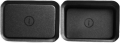 Sprites for the button seen on startup of the game.
 -
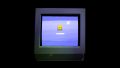 The computer that the user will enter their pin in.
 -
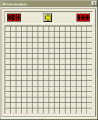 The Minesweeper game in KinitoPET.
 -
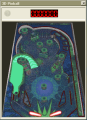 The Space Pinball game in KinitoPET.
 -
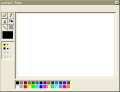 The Paint program in KinitoPET.
 -
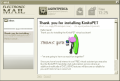 The E-Mail program in KinitoPET.
 -
 "The Internet" web browser in KinitoPET.
 -
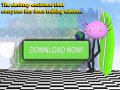 One of the KinitoPET ad popups that can appear while browsing the web.
 -
 Another one of the KinitoPET ad popups that can appear while browsing the web.
 -
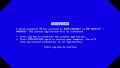 The blue Screen of Death that appears after the overflow of KinitoPET ads on the computer.
 -
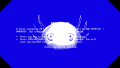 Ditto, but with a white semi-transparent Kinito head in the middle.
 -
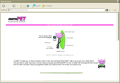 The KinitoPET download page that appears in the web browser after the BSOD.
 -
 The egg that contains Kinito when first opening the program.
 -
 The in-game render of Kinito.
 -
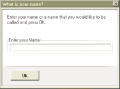 The name dialog box for KinitoPET.
 -
 The cover page of KinitoPET's Book: New Beginning.
 -
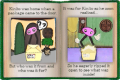 Ditto, but open.
 -
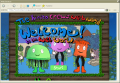 The title screen of Web World.
 -
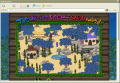 The Web World map.
 -
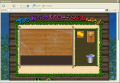 The first part of Ready Repair minigame.
 -
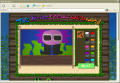 The second part of Ready Repair minigame.
 -
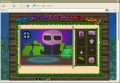 The third part of Ready Repair minigame.
 -
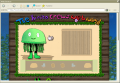 The Factory Frenzy minigame in KinitoPET
 -
 The clock that appears before the Hide and Seek window pops up.
 -
 Screenshot of the Hide and Seek window in KinitoPET.
 -
 Ditto but in a different location.
 -
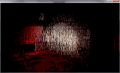 Screenshot of the Hide and Seek window before the KinitoPET Jumpscare.
 -
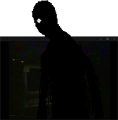 Screenshot of the KinitoPET Ad companion jumpscare.
 -
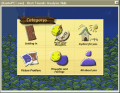 The first page of the KinitoPET Feedback Hub.
 -
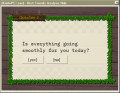 A Yes or No question in the Feedback Hub.
 -
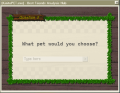 A textbox question in the Feedback Hub.
 -
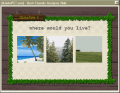 A picture question in the Feedback Hub.
 -
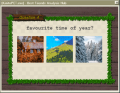 Ditto, but with favorite season instead.
 -
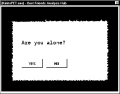 A Yes or No question in the Personal Questions chapter.
 -
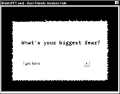 A textbox question in the Personal Questions chapter.
 -
 The light bulb that appears before the sleep paralysis section.
 -
 Ditto, but turned off.
 -
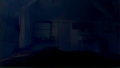 The Sleep Paralysis section that appears during the end of Personal Questions.
 -
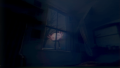 Kinito at the window during the sleep paralysis section.
 -
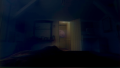 Kinito peeking into the user's room during the sleep paralysis section.
 -
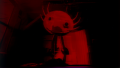 KinitoPET jumpscare that plays at the end of the sleep paralysis section.
 -
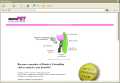 The KinitoPET Friendship Club webpage.
 -
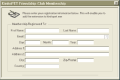 The KinitoPET Friendship Club registration window.
 -
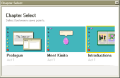 The Chapter Select program in KinitoPET.


Trivia
- The KinitoPET site seen in the game is an actual site which people can visit.[2] However, clicking on the Download button for KinitoPET just redirects users to the Steam page of the game.
- Unfortunately, there is no official page for "The Internet" search engine on the web browser.
- It is unlikely that KinitoPET was discontinued, as new merchandise for it was released on September 17th, 2025,[3] but there have been no updates since January 30th, 2024.
- There is a chance a message other than "Welcome" will appear after typing the password into the computer on screen.
- In the Build a World section, the only season that is missing from the selectable options is spring.
- The reason for this is likely due to the seasons only modifying the color of the trees and ground, and since summer already has green grass and trees, there would be no need for spring as a selectable option.
- While it is still unknown who the unknown user is, it is likely to be the creator of the KinitoPET program, as he says in the first e-mail "I like to keep backdoors in my software, KinitoPET is no exception.", implying that he created KinitoPET and included a backdoor in him.